- Published on
Herdr: how my MacBook Pro connects to Ubuntu terminals on a Windows PC
- Authors

- Name
- Nadim Tuhin
- @nadimtuhin
On this page
This is one piece of my AI coding agent setup. It covers how I get from my MacBook Pro to the terminals where the work happens.
The problem
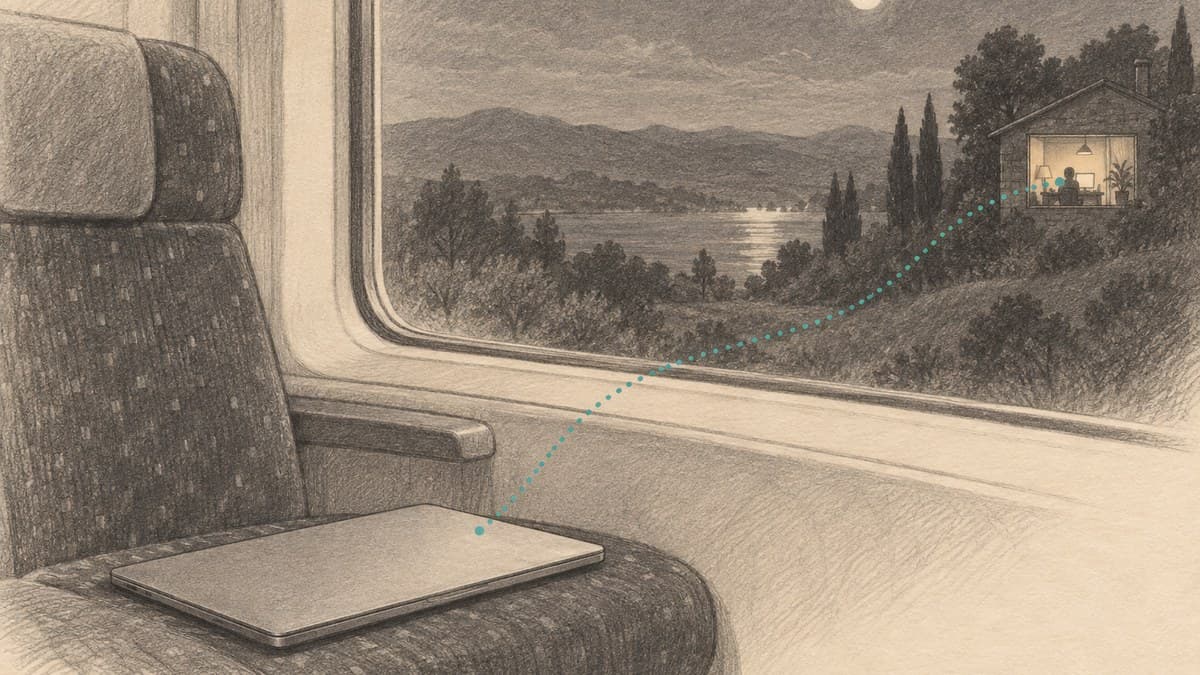
My agents run on a Windows PC at home, inside WSL2 Ubuntu. I sit at a MacBook Pro, sometimes at home, often not. I need the PC's terminals on my MacBook, with all my splits and tabs, and I need them to survive the MacBook closing, losing Wi-Fi, or me switching cafes.
Plain ssh gives me a shell, but the session dies with the connection, and managing layouts across many repos and many agents by hand is more work than it should be.
Herdr is a terminal workspace manager built with coding agents in mind. For me its job is simple: it is the connection between my MacBook and the PC's Ubuntu terminals.
How it is set up
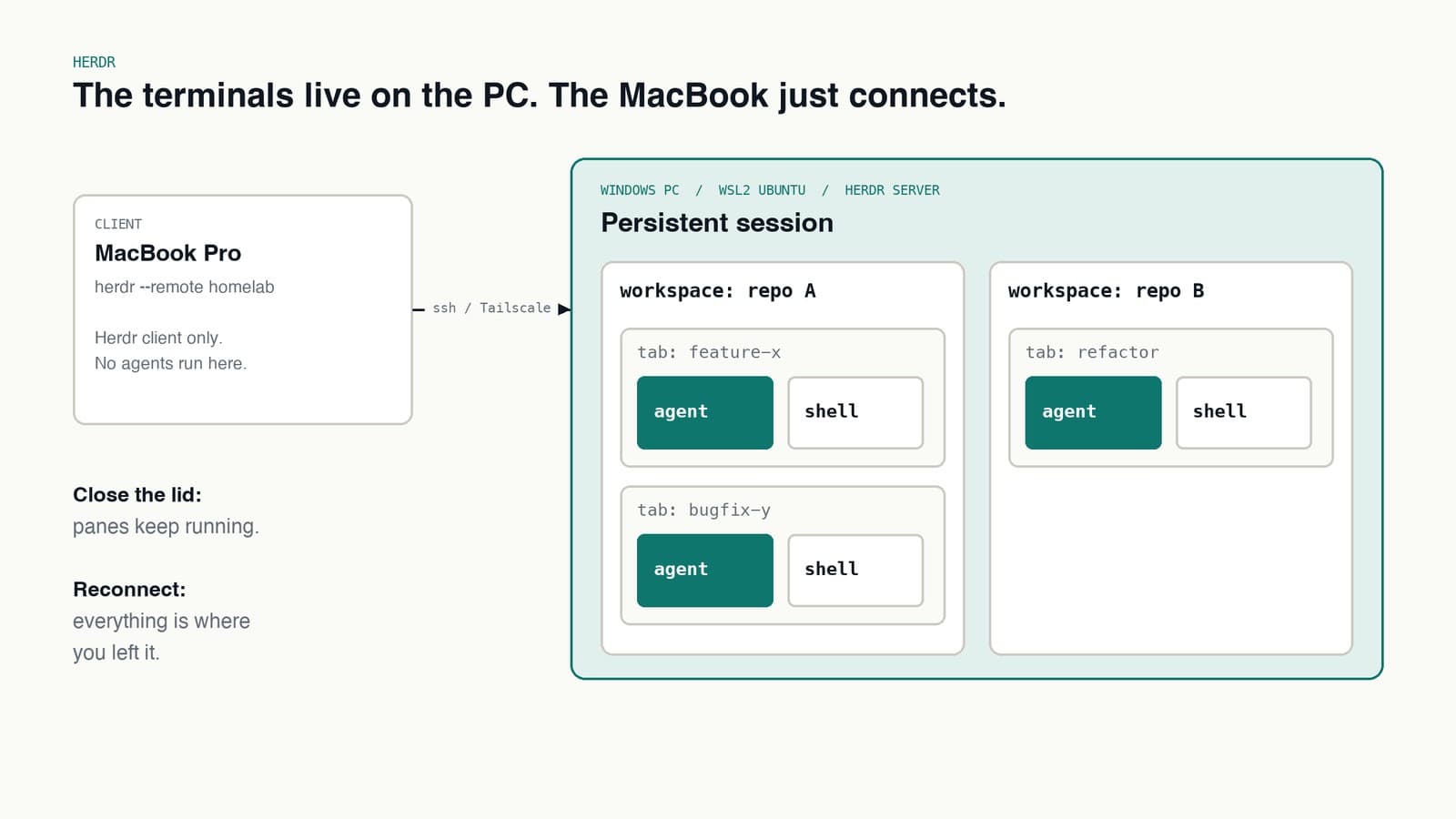
- The server runs inside WSL2 Ubuntu on the Windows PC. It owns the sessions, the workspaces, the tabs and the panes.
- The client runs on the MacBook Pro. It holds no state of its own.
- The connection is ssh over Tailscale, a private network between my own devices, so nothing on my home network is open to the internet.
From the MacBook, one command attaches:
herdr --remote homelab
homelab is a saved machine in Herdr, so I do not type hosts or ports. What I see is the PC's Ubuntu terminals, laid out exactly as I left them.
How I organise it
- A workspace per repo.
- A tab per task, usually in its own git worktree, so two agents never edit the same checkout.
- Panes inside each tab: one running the agent, one plain shell for me to run tests, read logs and check diffs.
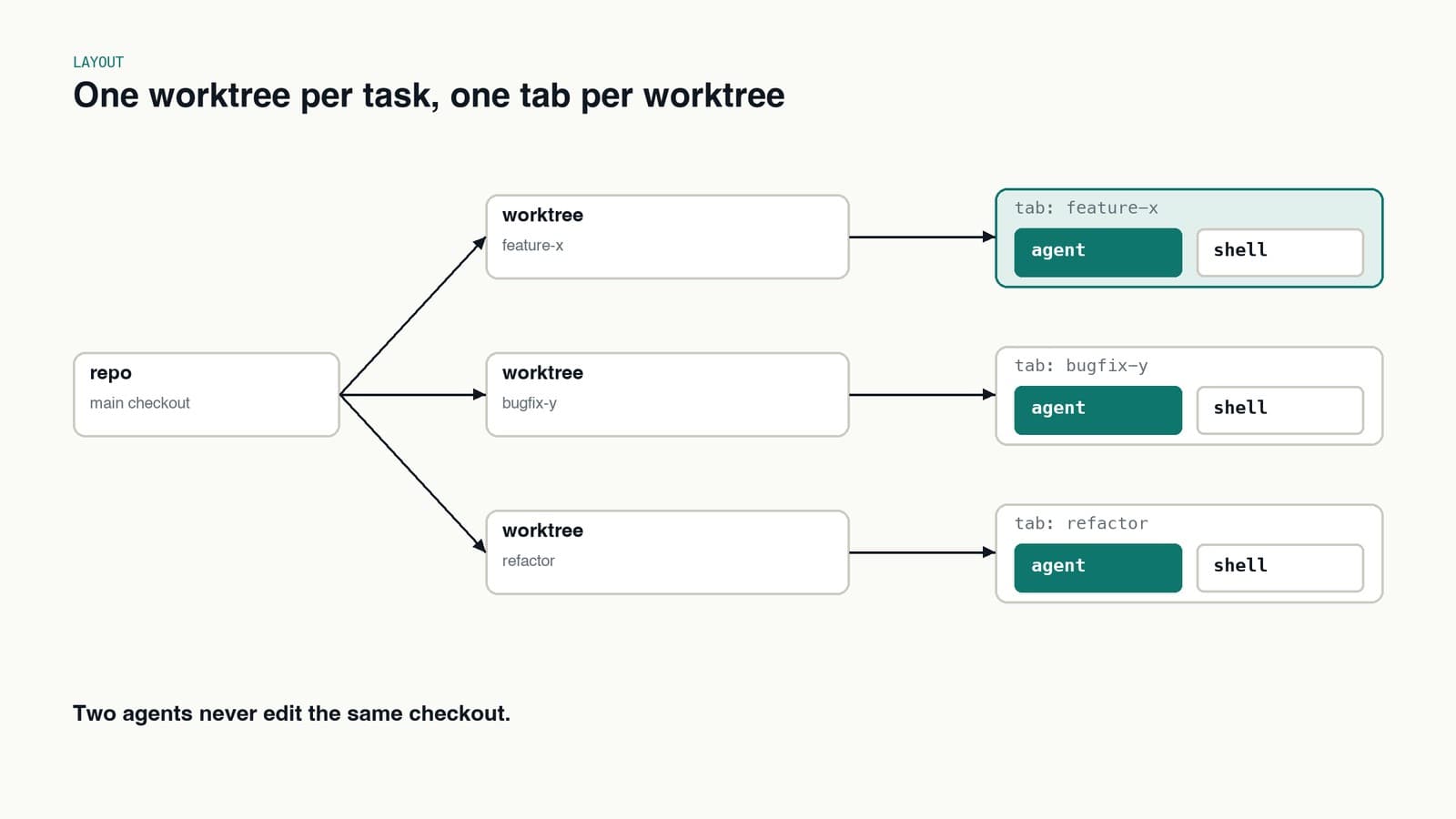
The agent processes live on the PC. The MacBook is a window into them.
Why this works for agents
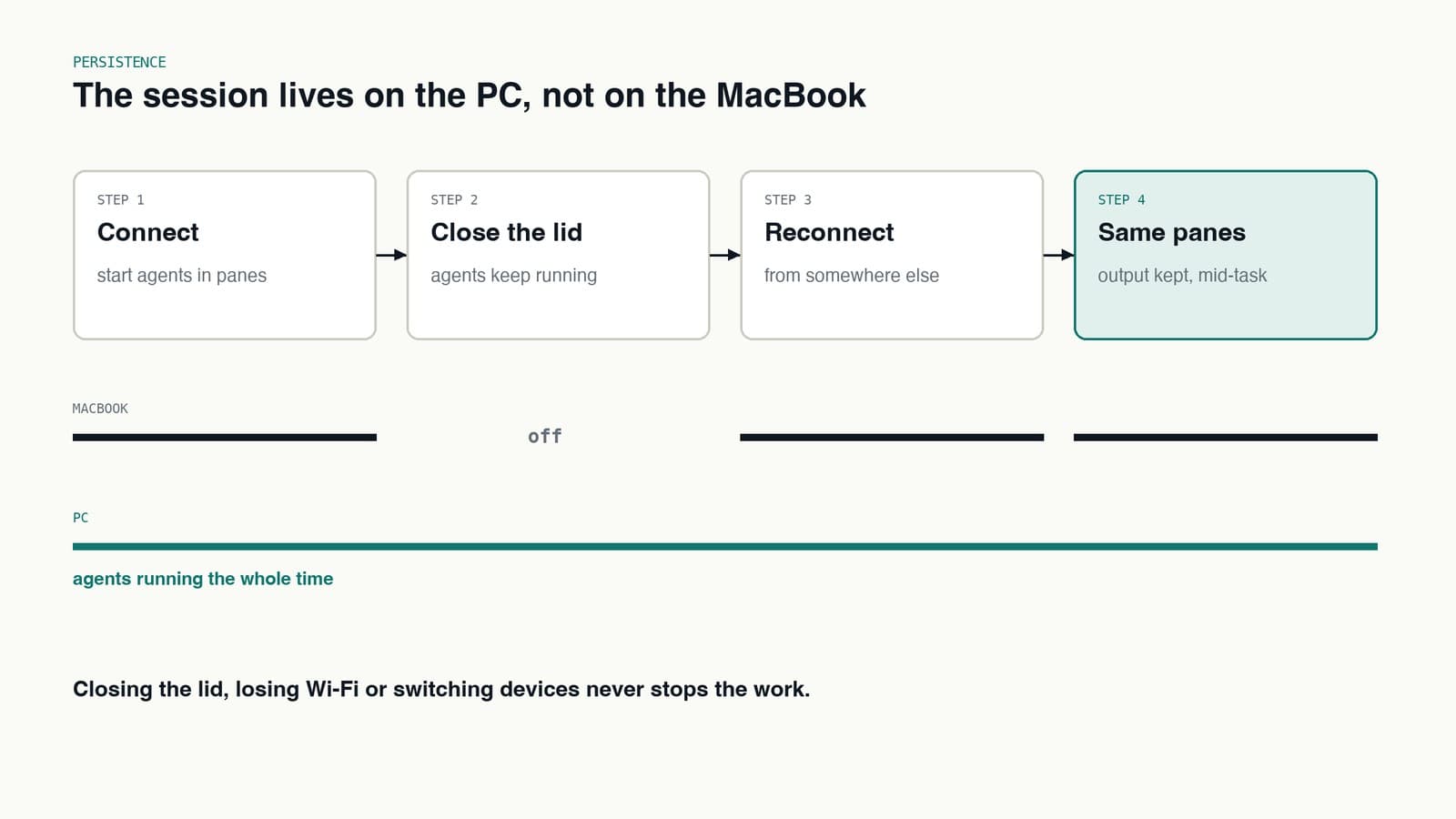
The main thing is persistence. Agents run for a long time. A refactor can take an hour, and a test loop longer. With the terminals living on the PC:
- Closing the MacBook kills nothing. The agents keep going.
- Losing the connection kills nothing. I reconnect and pick up mid-output.
- Switching devices is free. Same session, from wherever I am.
Herdr also has a socket API with helpers for workspaces, tabs, panes and worktrees, so scripts and agents can create and arrange panes too. I mostly drive it by hand, but it is good to know the layout is not locked inside a UI.
The WSL2 trap
One thing that bit me: Windows shuts down the WSL2 virtual machine when nothing is attached to it. When that happens, the Herdr server, the agents and everything else inside Ubuntu vanish with it.
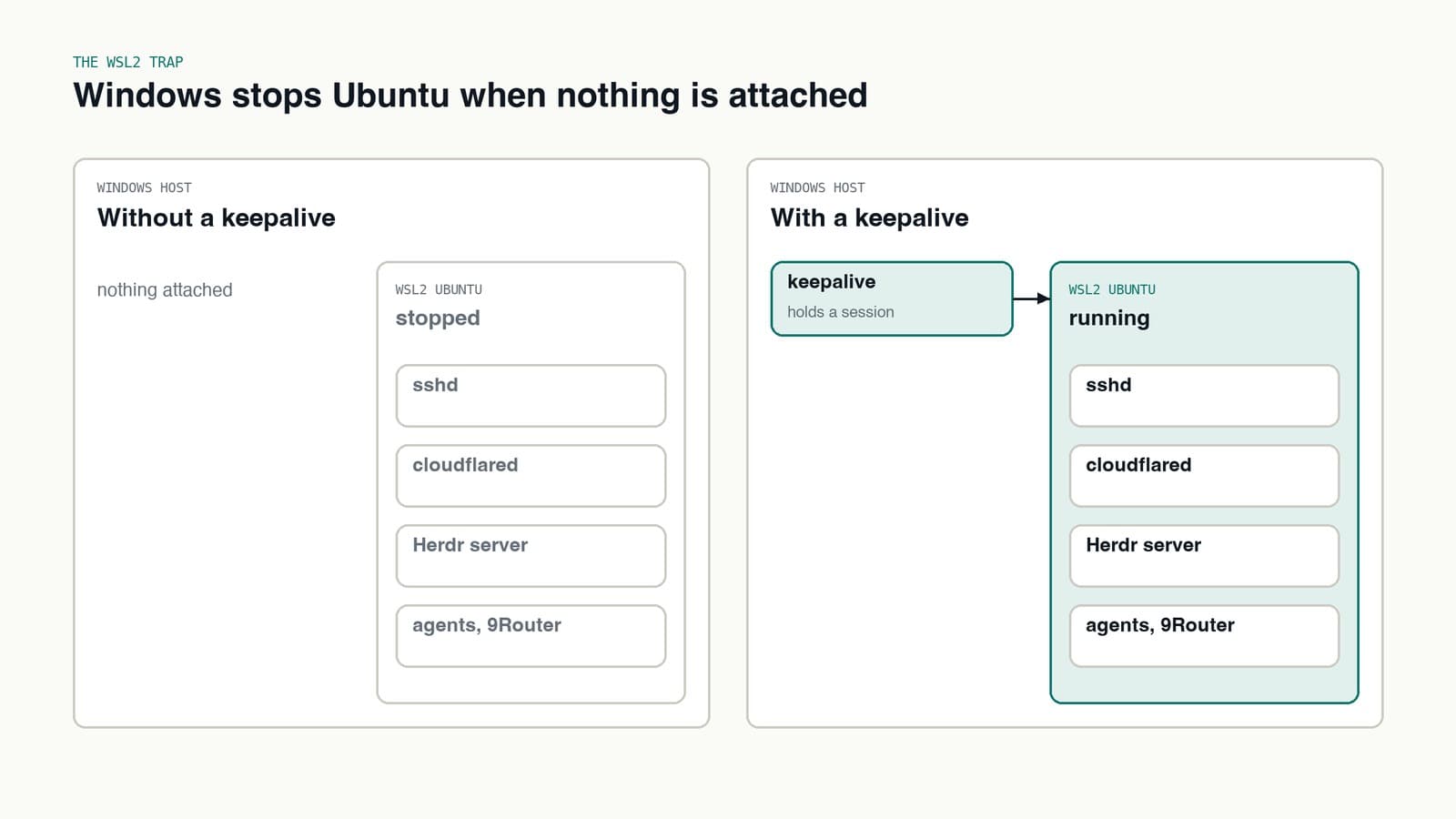
The fix is a small keepalive on the Windows side that holds a WSL session open, so the VM never idles out. If you run a server inside WSL2, plan for this before it surprises you at 2 AM.
What I would tell someone copying this
- Keep the terminals where the work is. If the sessions live on the machine doing the work, any device that can connect becomes a full workstation.
- Do not open ports at home. A private network like Tailscale is less work than hardening an exposed box.
- One worktree per agent. Herdr makes it cheap to give each task its own tab, so use that.
Inside those panes, agents start through 9agent and talk to models through 9Router. The jobs that run when I am not connected at all are Hermes.